More control for users. Big wins for admins.
We’ve introduced some big improvements to the login and account management experience — making it easier, faster, and more secure for the whole team.
Scroll for all the details, or click below to jump to a section:
New for users
Add an email address
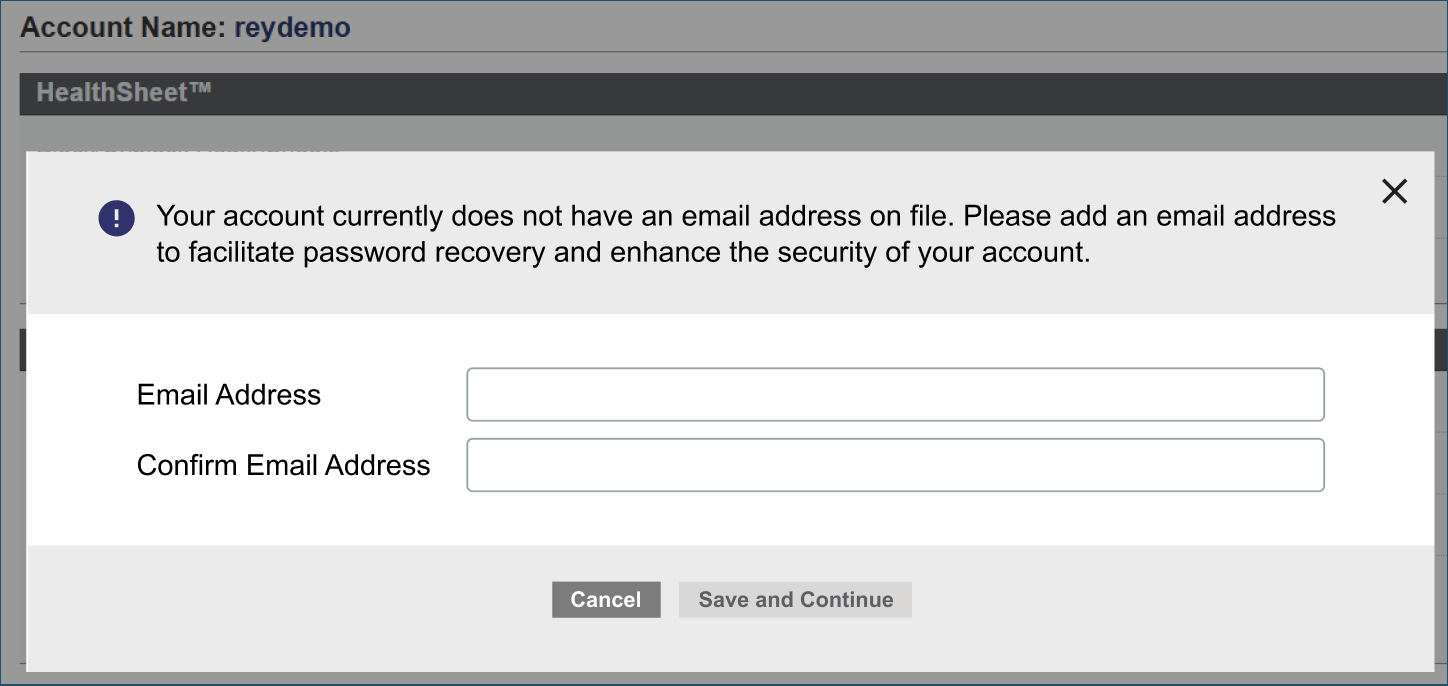
The next time you log in, you’ll be prompted to enter an email address for your account. If you ever forget your password, this allows you to reset it on your own — no more relying on Support.
Reset your own password
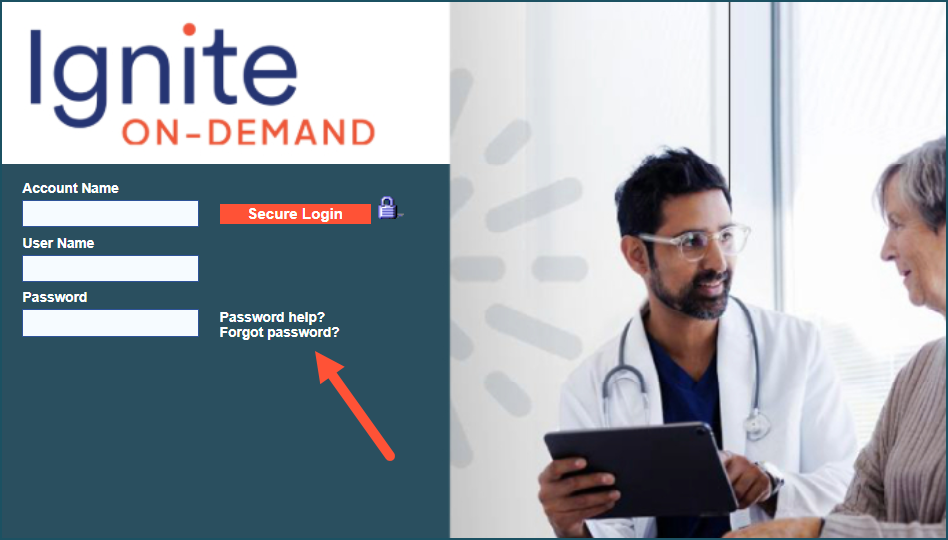
Forgot your password? Now you can update it yourself anytime, in a few simple steps:
- On the login screen, click the Forgot Password? link.
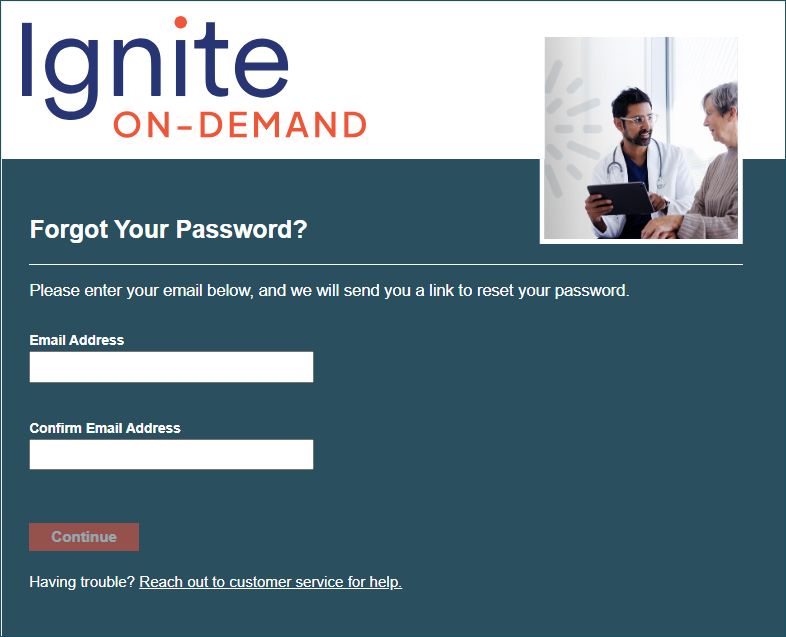
- Enter the new email address you added to your account.
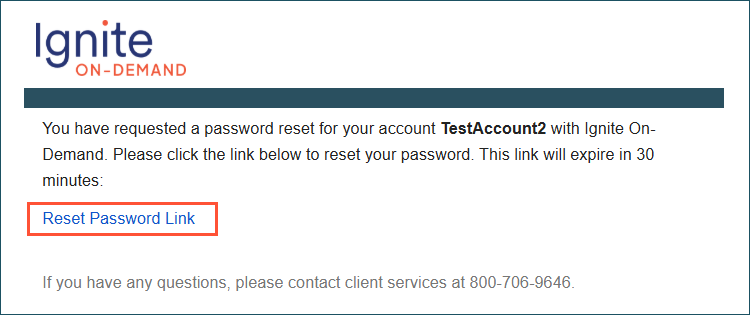
- Check your inbox for a password reset email, and click the secure link:
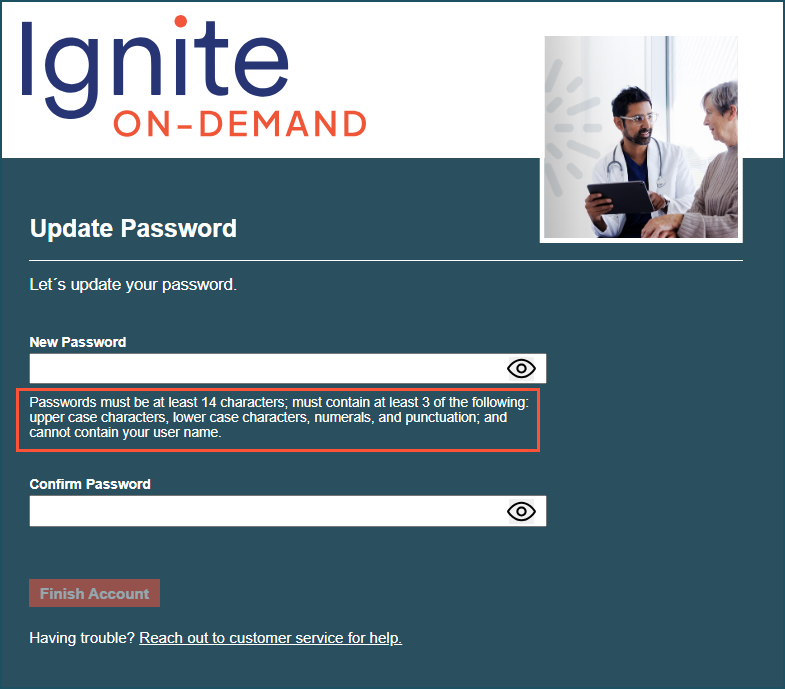
- Answer your security question, then update your password. You’ll be redirected back to the login screen, ready to go.

Prevent account lockouts
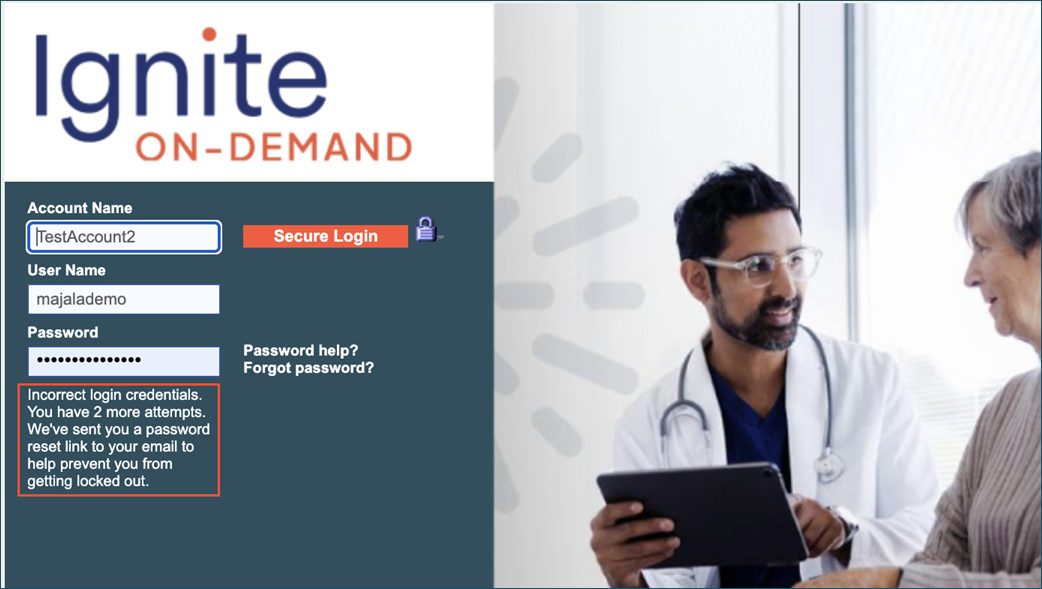
You still get up to five login attempts, but now we’ve added a counter that shows how many tries you have left. If you get down to your last two, we’ll automatically send you a password reset link to the email address you added to your account. So you can skip the wait and support ticket.
Update your personal information
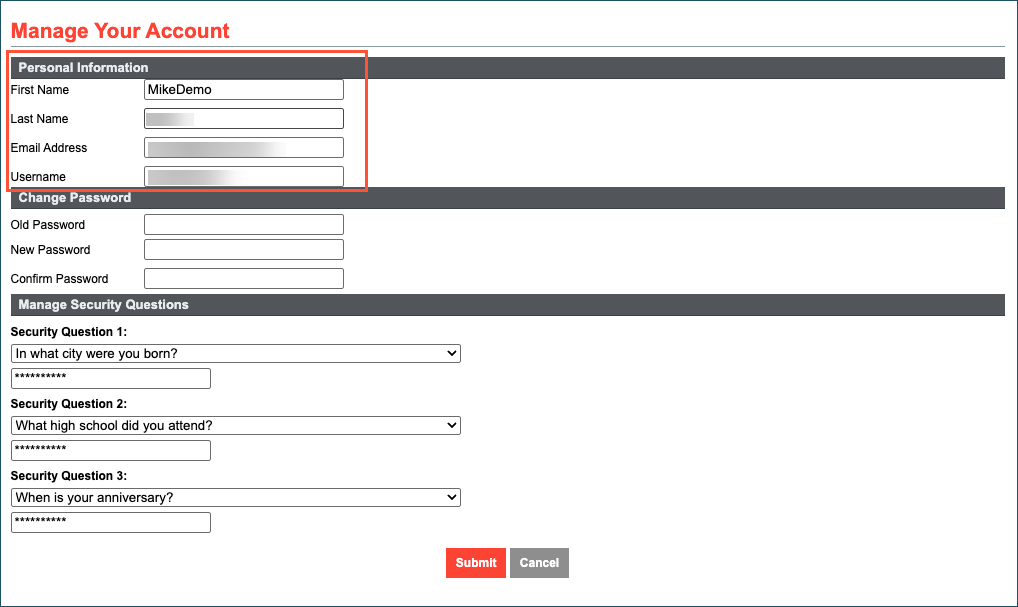
If you need to change key details — like your email or last name — you can quickly do so on your own. On the Manage Your Account screen, just update the Personal Information section and save.
New for admins
Breeze through onboarding
When you add users — either one at a time or through CSV import — they can now finish account setup all on their own. Less time and effort for you, smoother process for them.
Here’s how it works:
- On the Add a User screen, you’ll now include an email address. This field, along with other required fields, is highlighted in blue to guide you.
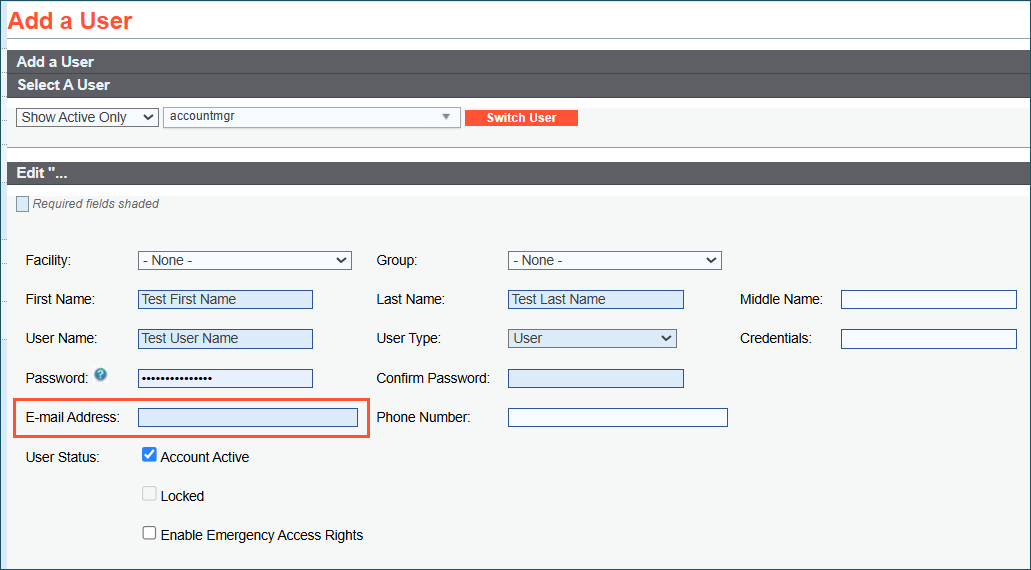
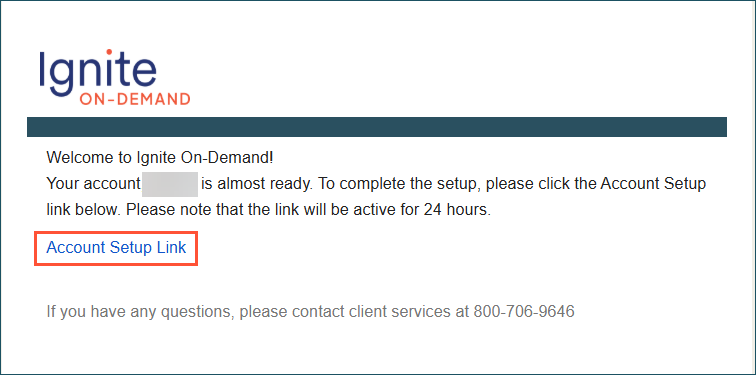
- After that basic setup, just save and your job is done. Users will receive a new automated welcome email with their account name and a secure link to complete setup.
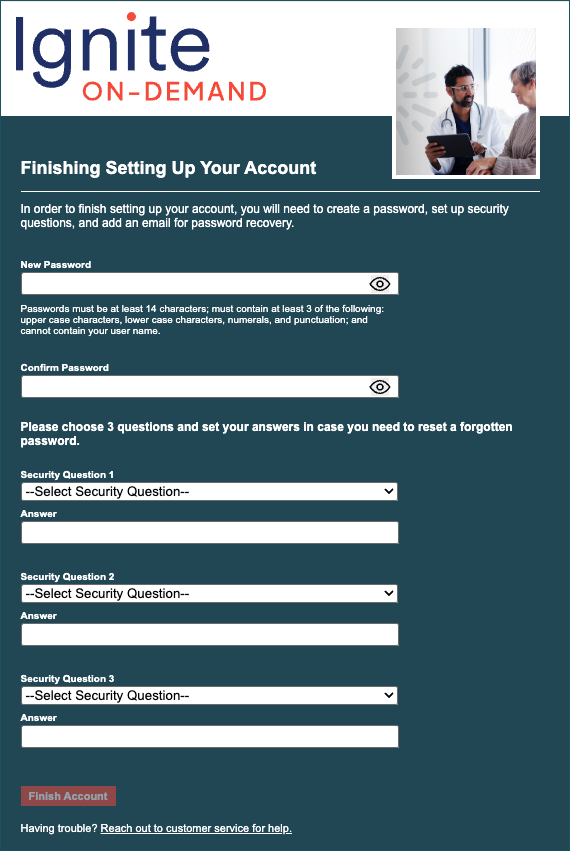
- Here, they’ll create their own password and security questions, so you no longer have to handle that private information.
Unlock accounts instantly
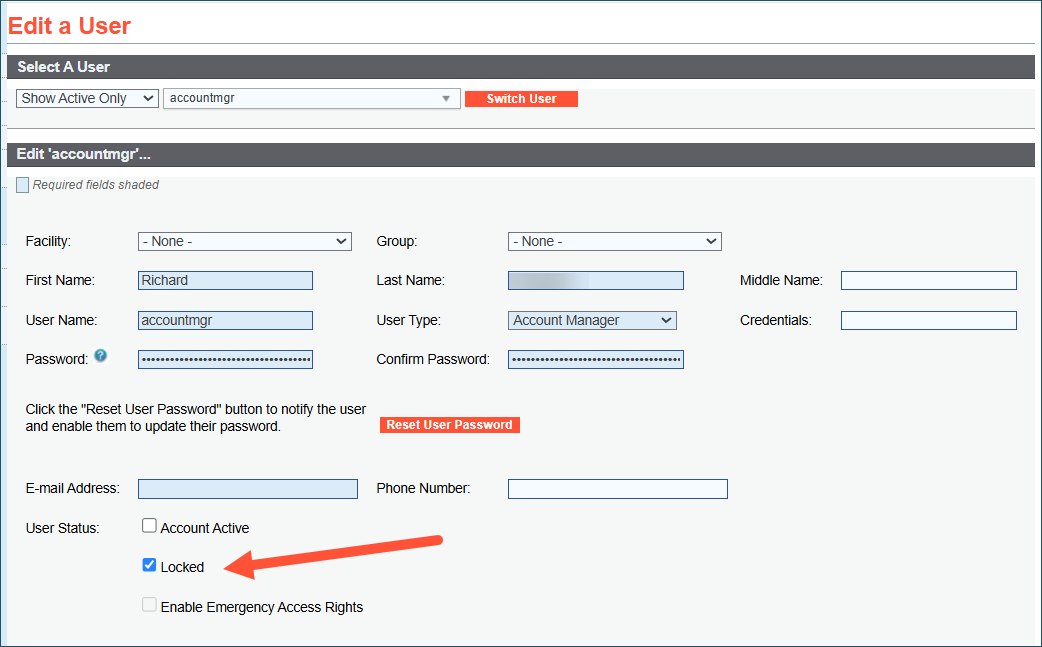
If a user gets locked out after 5 failed login attempts, you can now get them right back in — no need to wait or contact Support.
In the Edit a User screen, under User Status, there’s a new Locked checkbox which will be auto-selected if they’ve been locked out. Simply uncheck the box and save changes, then you and your team can keep moving without delay.