Content items can be printed and/or shared digitally, individually, or in bulk using the multiselect feature.
Share controls
The print/share session controls on the content toolbar allow you to determine how the content is provided to the patient during a patient encounter.


AVS Toggle: Controls whether the provided education appears on the AVS (default is ON)
Text size: Allows clinician to increase or decrease the size of the text in a document (default size is 12pt)

Personalization: Allows clinician to add the patient’s name to the first page of a document (default is OFF)
Transcript: Allows clinician to include the transcript of the video along with the bit.ly link and the QR code (default is OFF)

If all education has been provided to a patient, the Share Controls will return to their respective default settings when the Ignite on FHIR session ends. If education has been pre-selected and remains in the multi-select queue when the Ignite on FHIR session ends, Ignite on FHIR will retain any changes to the Share Controls each time it is launched until the education is either provided to the patient or unselected and removed from the multi-select queue.
Language of content items
The suggested content items are displayed in the patient’s preferred language if it is specified in the patient record and if WebMD Ignite has education in the preferred language. If no language other than English is specified in the patient record, or if WebMD Ignite does not have content in the patient’s preferred language, the items in FHIR default to English.
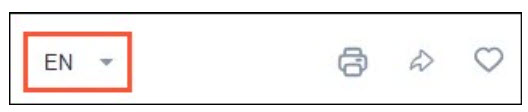
You can change the language of a content item by clicking the language dropdown. FHIR will list the languages the document is available in. This change will apply to that item alone, it will not be a global change for all the content items.
Print/share single items
A single education resource can be provided to the patient through print or share by clicking the printer icon or arrow icon associated with the resource.
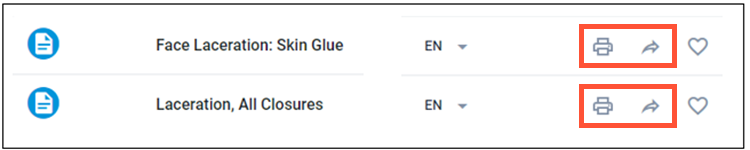
If your organization has enabled the Print Only functionality, you will have a Print Menu similar to the one below. Once the Print Menu is open, you can choose PRINT + MYCHART to print and document to MyChart (and the AVS); or PRINT ONLY, which does not document the education to Chart Review, the AVS or MyChart.
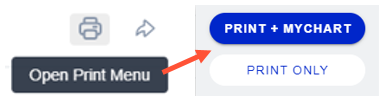
- Print button: Sends the item to your local printer, shares to the EHR, attaches to the AVS if the AVS Toggle is enabled and On and sends to MyChart (Patient Portal Integration required)
- Share button: Shares the item to the EHR, attaches to the AVS if the AVS Toggle is enabled and On and sends to MyChart (Patient Portal Integration required)
- Print Only button: Sends the item to your local printer only. Does not share it to the EHR, does not attach to the AVS (even if the AVS Toggle is enabled and On) and does not send to MyChart (Patient Portal Integration required). There is no record anywhere, other than the printed copy, that the education was ever given to the patient.
Print/share multiple items
Multiple education resources can be printed or shared in a single batch. To use this option, each resource must first be selected by clicking the content type icon next to the resource.
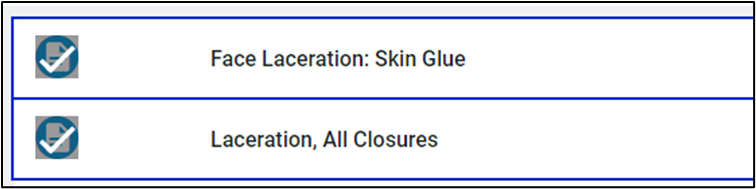
When a resource is checked, the multi-select action bar appears at the bottom of Ignite on FHIR.
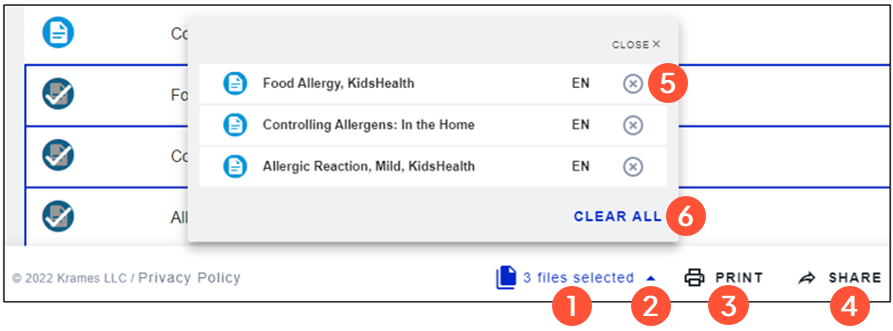
Item counter: Indicates the number of items selected
Dropdown: Opens and closes the list of selected items (items can be deselected from the expanded dropdown)
Print button: Sends all the items in the queue to the local printer, shares them to the EHR and MyChart (Patient Portal Integrated required)
Share button: Share all the items in the queue to the EHR and MyChart (Patient Portal Integration required)

Remove an item: Removes a single item from the selected list
Remove all items: Removes all items from the selected list
On-screen confirmation
Once items have been printed/shared, a confirmation will pop up for a moment on the screen. This confirmation will not disrupt the workflow and will disappear on its own.

Shared/Printed indicator
After an item has been printed or shared, a date/time stamp indicator will be displayed for 12 months from the last provided date to notify you of items already printed or shared with the patient.

Patient notifications
When Patient Portal Integration is enabled by the organization, FHIR can send an email to the patient when education is printed or shared. If an email address exists in the patient record, it will be pulled into FHIR with the rest of the patient information. If no email address exists in the patient record, one can be manually added in FHIR by clicking the Bell icon next to the patient’s age.
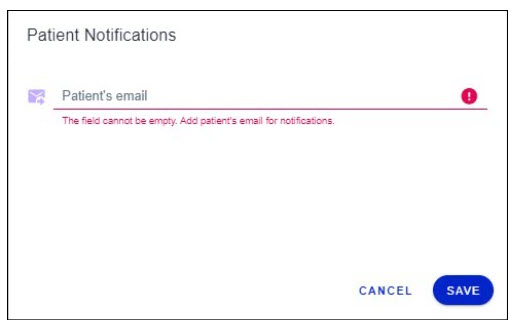
Since patient education can only be sent to an active patient portal account, there is no need to add an email address if the patient does not have an active portal account. If an email address is entered into FHIR, that email address will not be communicated back to Epic and the patient record will not be updated. The email address will also only be retained for the current FHIR session. The default frequency for emails is no more than once every 24 hours, but your organization can configure a different frequency if desired.
Write back to EHR
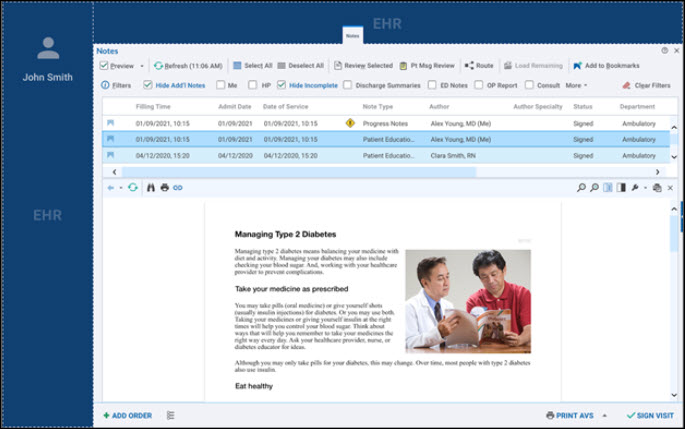
The education items that are printed/shared for a patient are documented in the patient’s history through a Custom Note type. This can be accessed in the Chart Review Notes tab and, if configured by your organization, the Activity Notes tab.
At the same time, the printed/shared education items are added to the AVS; unless the organization enables the AVS On/Off in FHIR and you change the toggle to Off.
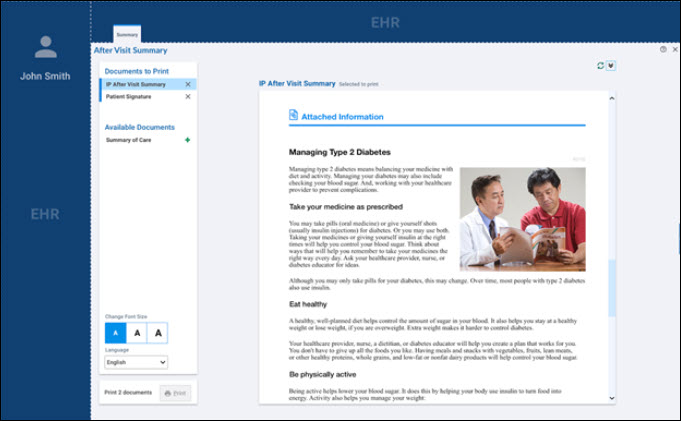
The write-back is customized by your administrator to fit your organization’s needs.