You can search from the Recommended Content/Home page and/or from the Search Results page.
Search
FHIR has a free text search functionality allowing you to find resources using keywords.
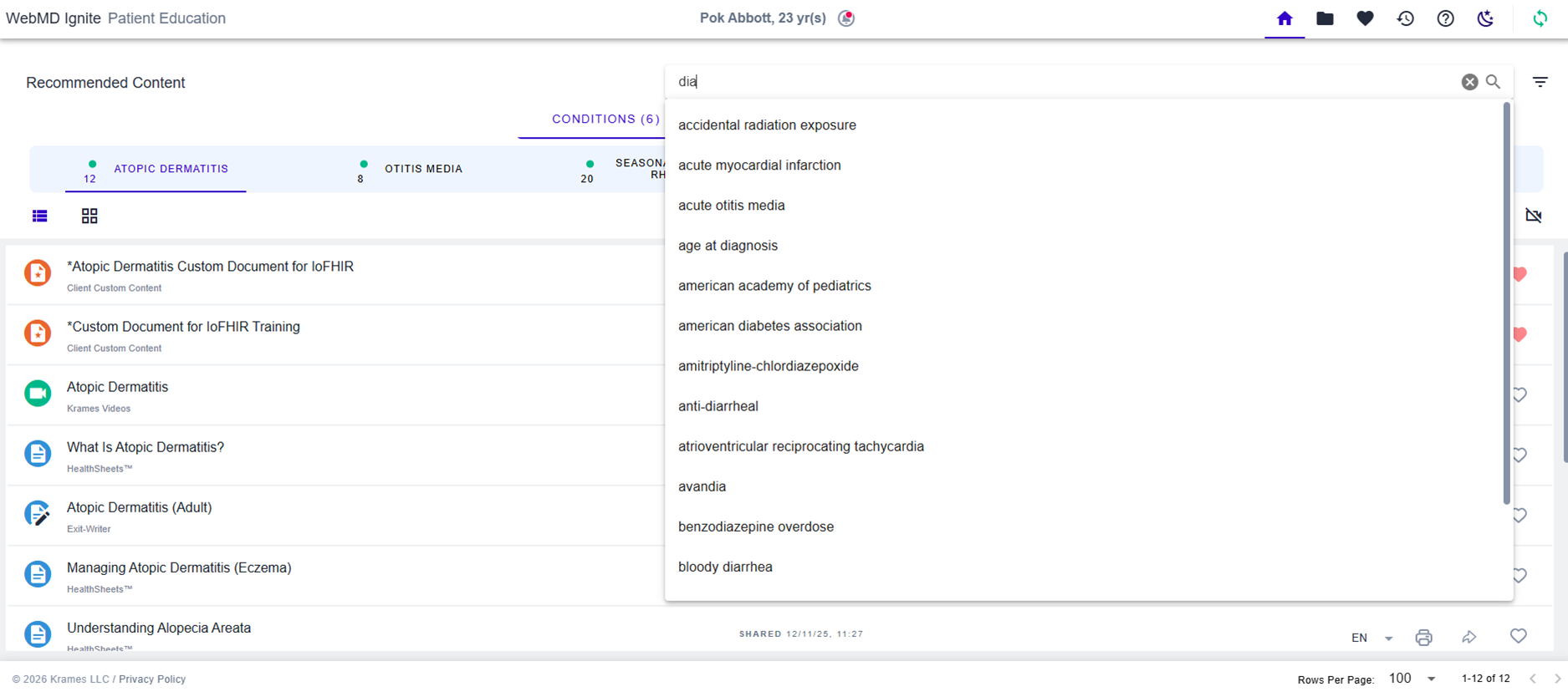
The search box has predictive functionality that suggests search terms as you start typing inside the search box. Selecting a term in the list shortens the time it takes to type entire keywords.
If a suggestion fails to return content, it may be a result of your filter choices, or your organization may not use the applicable content library.
If no suggestion is provided, you can type keywords of your choosing into the search.
Sort and Filter
The Sort and Filter menu appears on the Recommended Content/Home page and on the Search Results Page. This menu is used to sort the content results in a specific order, as well as expand or refine the content displayed on the page. Open the Sort and Filter Menu by clicking the cone icon to the right of the search box. To close, click the “X” in the upper right-hand corner of the Filter box.
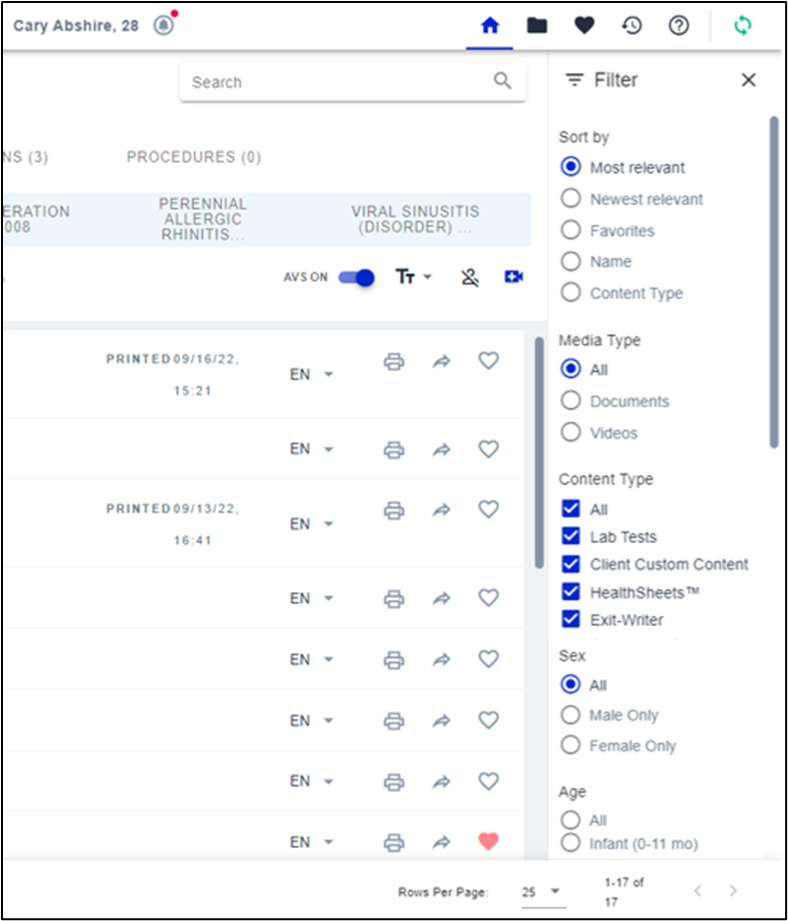
FHIR will retain/remember the following from session to session.
- Sort and Filter menu open or closed
- Sort by order choice
- Content type
Recommended and manual search content can be sorted by:
- Most Relevant ( default): Titles most relevant to the condition, medication, procedure, and/or impression tab are displayed from the top to the bottom of each page of results.
- Newest Relevant: Documents with a more current published date take precedence over documents that might be more relevant.
- Favorites: Items tagged as favorites are sorted to the top of each page of results for easy identification.
- Name: Titles are sorted in alphabetical order (A - Z) from top to bottom of each page of results.
- Content Type: Titles are sorted by the licensed content libraries (Lab Tests, Client Custom Content, HealthSheets, etc.) from top to bottom of each page of results.

Recommended and Manual Search Content can be filtered by:
- Media Type. The default setting is All. This filter allows you to filter content by documents, videos, or both.
- Content Type. The default setting is All. This filter lists all the licensed content libraries available. You can filter by selecting one or more specific content libraries. Remember that FHIR will retain any changes you make, so be sure to reset the filter to All before ending the FHIR session.
-
Birth Sex. The default setting matches the patient’s birth sex shown in the patient’s record, but you can change this setting in the filter.
When suggested by FHIR, education will be returned for content coded for the patient’s birth sex and content coded "All" that is relevant to both birth sexes. - Age. The default setting matches the patient’s age shown in the patient record, but you can change this setting in the filter.